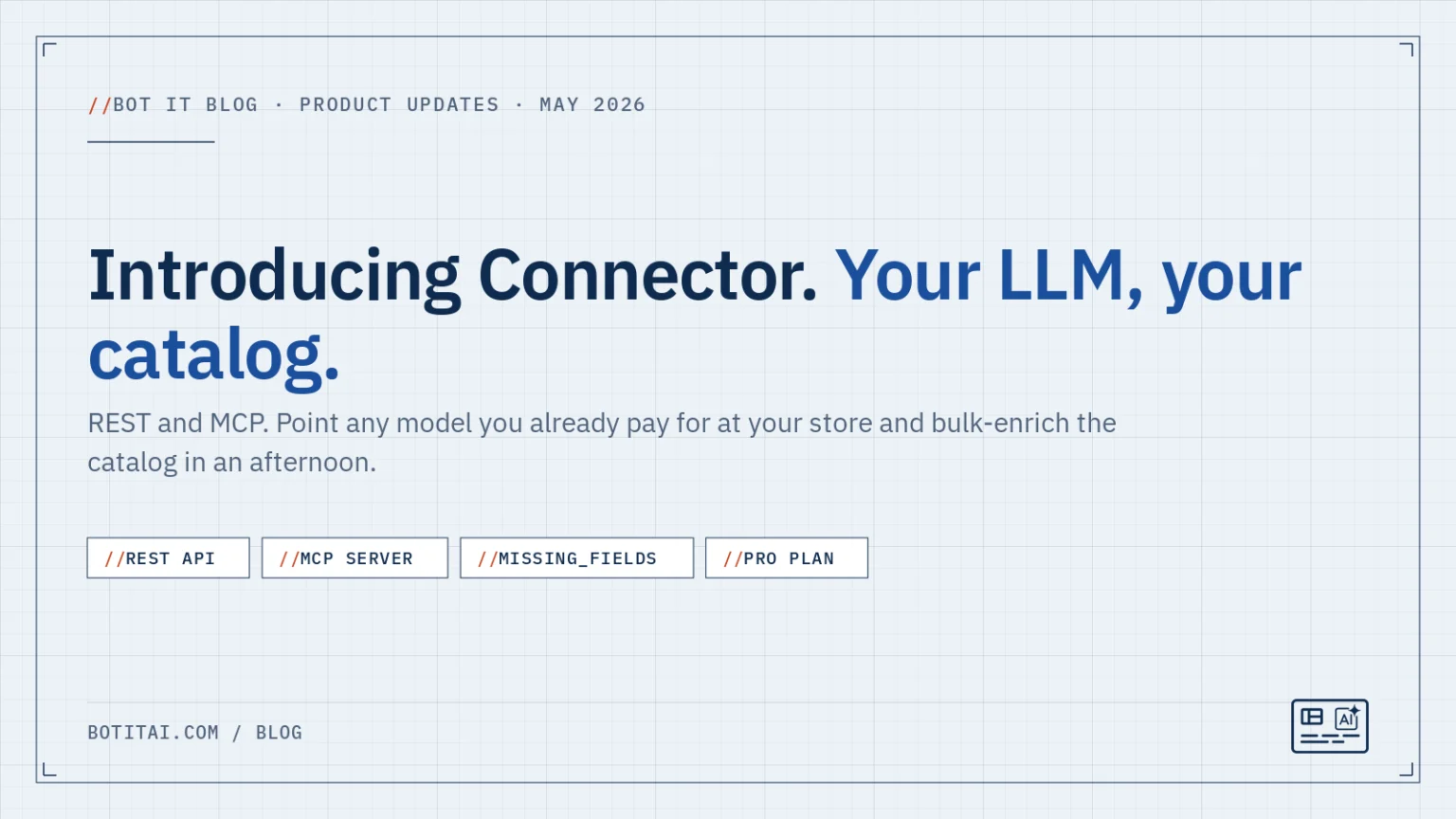
You don’t need us to write your product copy. You already have an LLM you trust, whether that is Claude, ChatGPT, Gemini, Cursor or something custom, and it already has a feel for your brand. We just needed to give it a way to read your catalog and write back. That’s Connector.
The problem with “AI-generated descriptions” inside an app
For the last year, every Shopify app with “AI” in the name has shipped some version of the same flow: click a button, get text generated by a model the app vendor chose, on a budget the vendor decided, with a tone you didn’t pick. It works once or twice. Then you realize the model has no idea what your store actually is.
We tried it. We had “Generate Suggestion” buttons in Bot It’s Brand Context page for a hot minute. We took them out. The truth is: the merchant’s own LLM, in their own session, with their own context window already half-full of their brand: that’s the model that should be doing this work. Not ours.
What Connector gives you
Connector is a Pro-plan feature that exposes your store’s Bot It data through two surfaces:
Fig. 01 Two surfaces, one catalog
Connector exposes the same store data both ways. Pick the one your LLM already speaks.
REST API
For any LLM client that can call HTTPS
LangChain, custom Python, n8n workflows, the Anthropic SDK, raw curl. If it speaks HTTP, it can read and write your brand context, collections, and products. GET to discover what’s missing, PATCH to fill it in. Standard verbs, standard JSON, standard rate limits.
GET/v1/products/{id}
PATCH/v1/products/{id}
MCP server
For Claude Desktop, ChatGPT, Cursor, and any MCP-capable client
Drop one config block into claude_desktop_config.json (or the equivalent for your client) and your LLM gets ten typed tools: get_brand_context, list_partial_products, update_product_narrative, and so on. No code to write. Tell Claude to “finish enriching products that have missing fit notes” and watch it work.
10typed tools, one config block
Both surfaces are Pro-plan features and read and write the same brand context, collection and product records.
The signal that makes this actually work: missing_fields
The reason this isn’t just “an API to your database” is that every read response includes an explicit list of what’s empty. So instead of your LLM scanning 30 fields to figure out what it needs to do, it just reads the list:
GET /v1/products/8123456789012
{
  "id": 8123456789012,
  "narrative": "",
  "fit_notes": "",
  "materials_notes": "Recycled mesh, EVA midsole, Vibram outsole",
  "use_case_notes": "",
  "missing_fields": ["narrative", "fit_notes", "use_case_notes", ...]
}
The LLM looks at missing_fields, writes only those, leaves the merchant’s existing entries alone. We tell it (and you tell it, in the system prompt we provide): never overwrite human edits, never fabricate certifications, never invent measurements. We confirmed this live during testing: when the source page didn’t list a material, the LLM left the field blank. That’s the behavior you want.
The workflow we recommend
In the Connector tab, you’ll find a system prompt you can paste straight into your LLM. It tells the model exactly how to behave:
- Read brand context. Fill missing fields first, since every product narrative inherits tone from brand voice.
- Call
list_partial_productsto finish what you started. - Call
list_products?completion=emptyto find products you’ve never touched. - For each one, inspect
missing_fieldsand PATCH only those. - Repeat for collections.
Every write queues a background sync to your Shopify metafields automatically. You don’t manage that. The enrichment flows out to your Knowledge Base, and AI shoppers see it within minutes.
Fig. 02 The missing_fields loop
What happens between your LLM reading a product and an AI shopper seeing the result. You manage none of the sync.
1, read
GET the product
Every response carries missing_fields, so the LLM reads one list instead of scanning 30 fields.
2, write
PATCH only those
Existing merchant entries are left alone. No overwriting human edits, no invented certifications or measurements.
3, automatic
Background sync
Each write queues a sync to your Shopify metafields and on to the Knowledge Base.
Result
AI shoppers see it
Within minutes, in the same enrichment agents already read.
Then repeat with list_partial_products to finish what was started, and list_products?completion=empty for products never touched. Collections work the same way.
When this is right for you
Connector is for merchants with a catalog and an LLM they already pay for. If you have 50 products and you’re happy clicking through the admin once a quarter, the existing Brand Context, Collections, and Products tabs are still there and still free. Connector exists for the merchant who has 500 or 5,000 products, an LLM subscription they’re already using for marketing copy or customer support, and an afternoon to spend pointing one at the other.
It’s included in the Pro plan ($29/month) at no extra cost. Per-store API tokens, 600 requests per hour per token, mint and revoke from your admin.
Fig. 03 Which path fits your catalog
The admin tabs did not go anywhere. Connector is for the store where clicking through them is no longer realistic.
Stay in the admin
About 50 products, a pass once a quarter
Connector
500 to 5,000 products and an LLM you already pay for
Pricing as published at the time of this post. See the pricing page for the current plans.
Get started
Install Bot It from the Shopify App Store. Open the Connector tab in the Bot It admin. Click Create token, copy it once, paste it into your LLM. The full reference is at docs.botitai.com/features/connector, and the schema is machine-readable at app.botitai.com/v1/docs.json if you want your LLM to discover it on its own.
Your LLM, your catalog. We just connect them.